
A Usenet setup is five small apps, each doing one job. We have paid for Newshosting Unlimited since December 2022 and use it every day. Our home lab runs NZBGet on a seedbox, Prowlarr with three indexers, Sonarr and Radarr for automation, and Plex for playback. Most problems come from two mistakes: mismatched folder paths and mismatched category names. This guide avoids both from the start.
You’ll set everything up on one Linux machine with Docker, in about an hour.
Disclosure: Newshosting links here are affiliate links. We earn a commission if you sign up, at no cost to you. Apart from these referrals, we are not affiliated with Newshosting or authorized to speak for them. They gave us three free months for joining their program. We have paid for Unlimited since December 2022. Our disclosure policy.
Use it legally. Usenet is an old discussion and file network, and these are general-purpose tools. Only download what you have the right to: open-licensed or public-domain media, software you’re licensed for, and your own files. Copyright law applies on Usenet like anywhere else. We won’t help with finding infringing material.
The 8 steps: 1 Install Docker · 2 Make the /data folder · 3 Start the apps · 4 Connect SABnzbd · 5 Add your indexer · 6 Set up Sonarr and Radarr · 7 Link Prowlarr · 8 Point Plex at the library.
Seven words you need
- Usenet provider (Newshosting): the company whose servers store the files. You pay it for access.
- NZB file: a small file that tells your downloader which pieces to fetch. Think of it as a shopping list.
- Indexer: a website that searches Usenet and hands out NZB files.
- Downloader (SABnzbd or NZBGet): fetches the pieces, repairs them and unpacks them. Sonarr and Radarr call it a “download client”.
- Container: an app packaged with everything it needs. Docker runs containers, so nothing gets installed on your system directly.
- Category: a label like
tvormovies. It tells the downloader which folder a job goes into. - API key: a long password one app uses to talk to another. You will copy a few of them between apps.
What you need
- A Linux machine that stays on. Ubuntu 22.04/24.04/26.04 or Debian 12/13, 64-bit, with 4 GB RAM. An old PC or mini PC is fine. (NAS boxes like Synology run Docker differently. These commands won’t work there as written.)
- A terminal on that machine. Sit at it, or connect from your laptop with
ssh yourname@SERVER-IP. - Another computer or phone on the same network with a web browser, for the app pages.
- Disk space: your library plus about 100 GB of working space for downloads and unpacking.
- A Newshosting account. Your username comes in the welcome email. The password is the one you chose at signup.
- An NZB indexer account with an API key. We don’t recommend specific ones here.
Skip this guide if you only want the odd file (Newshosting’s own newsreader, included with every account, is simpler) or your computer sleeps at night (Sonarr and Radarr need an always-on machine).
How the pieces fit
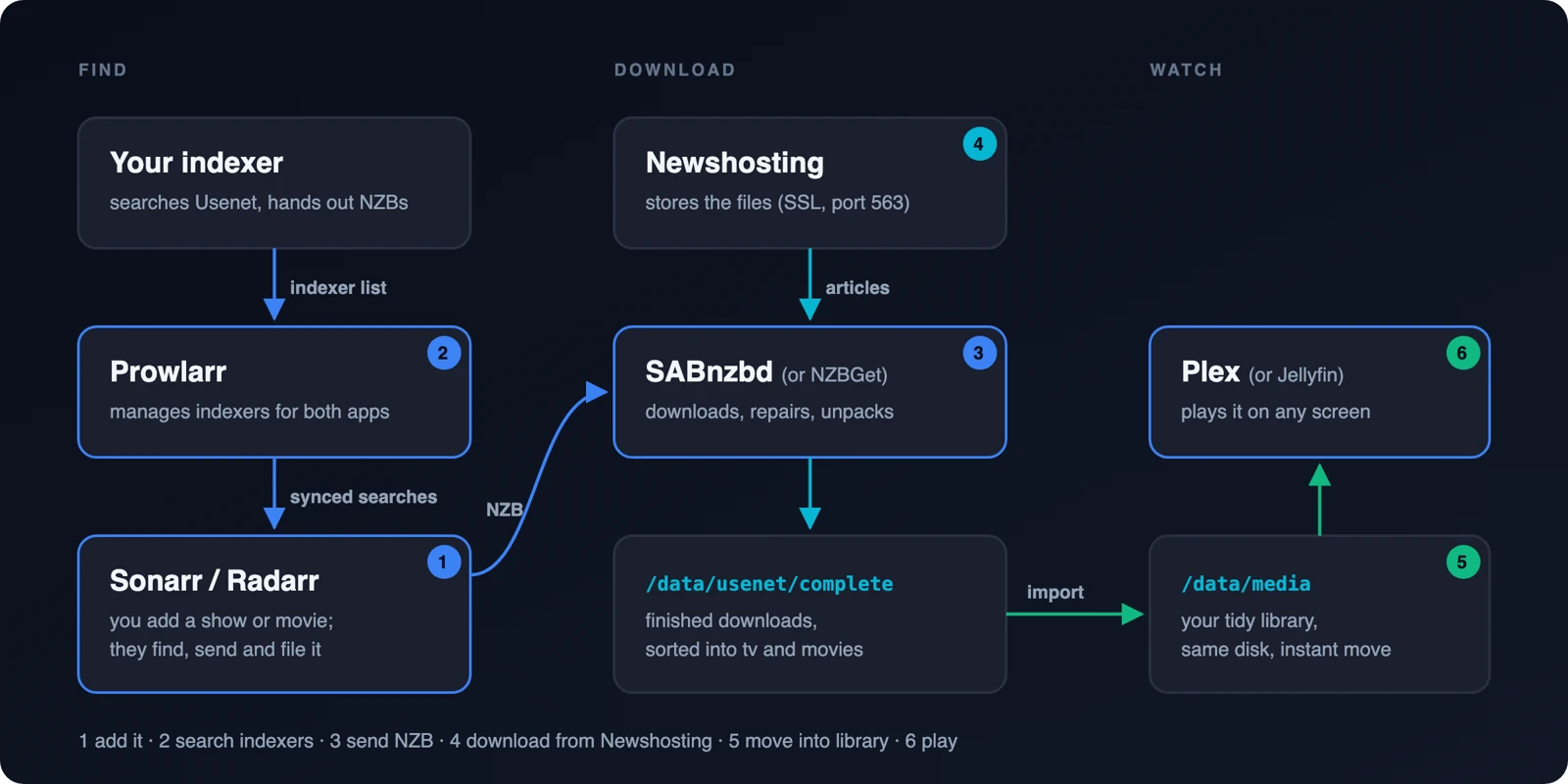
- You add a show in Sonarr (or a movie in Radarr).
- Sonarr asks Prowlarr’s indexers for an NZB.
- Sonarr sends the NZB to SABnzbd.
- SABnzbd downloads it from Newshosting, repairs it and unpacks it.
- Sonarr moves the file into your library.
- Plex plays it.
Which downloader? We run NZBGet, but SABnzbd is easier for a first setup. Its setup wizard asks for your server right away. Its built-in categories (movies, tv) already match Sonarr and Radarr. NZBGet gets a short box after step 4.
Newshosting server settings
You’ll type these into SABnzbd in step 4. Keep this table handy.
| Setting | Value |
|---|---|
| Host | news.newshosting.com (picks the nearest location for you) |
| Host, if speeds are poor in Europe | news-eu.newshosting.com |
| Port | 563 |
| SSL / Encryption | On |
| Fallback port if 563 is blocked | 443 (still SSL) |
| Username / Password | Your Newshosting login |
| Connections | Start at 20. Plan max (October 2026): 100 on Unlimited and XL, 30 on Lite. |
Never use port 119. It works, but it is unencrypted.
How many connections? Start with 20. A home line usually fills with 10 to 30 connections; more just adds overhead. We run 30, well under the 100 our plan allows. If downloads don’t reach your internet speed, add 5 at a time.
Step-by-step setup
1. Install Docker
Why: each app runs in its own container, so updates are one command.
curl -fsSL https://get.docker.com -o get-docker.sh
sudo sh get-docker.sh
sudo usermod -aG docker $USER
This is Docker’s own convenience script. It installs Docker and Docker Compose, and it’s fine for a home server.
Then log out and log back in (or reboot) so you can run Docker without sudo.
Check it works: docker run hello-world prints “Hello from Docker!” and docker compose version prints a version number.
2. Make the /data folder
Why: when downloads and the library live under one folder on one disk, Sonarr and Radarr can move a finished file instantly instead of copying it byte by byte.
sudo mkdir -p /data/usenet/incomplete /data/usenet/complete/{tv,movies} /data/media/{tv,movies}
sudo chown -R $USER:$USER /data
sudo chmod -R 775 /data
chown makes you the owner. chmod 775 lets you and your group read and write. That gives you this layout:
/data
├── usenet
│   ├── incomplete
│   └── complete
│       ├── movies
│       └── tv
└── media
    ├── movies
    └── tv
Check it works: ls -ld /data/media/tv shows your username as the owner.
3. Start the apps
Why: one file describes the whole stack, so you can rebuild it anywhere in minutes.
First, make a folder and a small .env settings file with your user ID, group ID and time zone.
mkdir -p ~/mediastack && cd ~/mediastack
echo "PUID=$(id -u)" > .env
echo "PGID=$(id -g)" >> .env
echo "TZ=$(timedatectl show -p Timezone --value)" >> .env
cat .env
cat .env prints three lines, for example PUID=1000, PGID=1000 and TZ=America/New_York. If the TZ= line is empty or says Etc/UTC and that isn’t where you live, run nano .env and fix it by hand, written like America/Chicago (the “TZ identifier” column on Wikipedia’s list of tz database time zones). Save with Ctrl+O, Enter, then Ctrl+X.
Now create the compose file:
nano docker-compose.ymlPaste the file below. To paste in nano, right-click or press Ctrl+Shift+V. Nothing in it needs editing. Keep the spaces exactly as shown, and don’t use tabs. Save with Ctrl+O, Enter, then Ctrl+X.
services:
  sabnzbd:
    image: lscr.io/linuxserver/sabnzbd:latest
    container_name: sabnzbd
    hostname: sabnzbd
    environment:
      - PUID=${PUID}
      - PGID=${PGID}
      - TZ=${TZ}
      - UMASK=002
    volumes:
      - ./config/sabnzbd:/config
      - /data/usenet:/data/usenet
    ports:
      - 8080:8080
    restart: unless-stopped

  prowlarr:
    image: lscr.io/linuxserver/prowlarr:latest
    container_name: prowlarr
    environment:
      - PUID=${PUID}
      - PGID=${PGID}
      - TZ=${TZ}
      - UMASK=002
    volumes:
      - ./config/prowlarr:/config
    ports:
      - 9696:9696
    restart: unless-stopped

  sonarr:
    image: lscr.io/linuxserver/sonarr:latest
    container_name: sonarr
    environment:
      - PUID=${PUID}
      - PGID=${PGID}
      - TZ=${TZ}
      - UMASK=002
    volumes:
      - ./config/sonarr:/config
      - /data:/data
    ports:
      - 8989:8989
    restart: unless-stopped

  radarr:
    image: lscr.io/linuxserver/radarr:latest
    container_name: radarr
    environment:
      - PUID=${PUID}
      - PGID=${PGID}
      - TZ=${TZ}
      - UMASK=002
    volumes:
      - ./config/radarr:/config
      - /data:/data
    ports:
      - 7878:7878
    restart: unless-stopped

  plex:
    image: lscr.io/linuxserver/plex:latest
    container_name: plex
    network_mode: host
    environment:
      - PUID=${PUID}
      - PGID=${PGID}
      - TZ=${TZ}
      - VERSION=docker
      - PLEX_CLAIM=          # only if step 8 needs it
    volumes:
      - ./config/plex:/config
      - /data/media:/data/media
    restart: unless-stopped
Two details matter here.
- Same paths everywhere. Sonarr and Radarr see all of
/data. SABnzbd sees/data/usenetat the same path. So a file at/data/usenet/complete/tvhas the same address in every app. - Apps find each other by name. Inside this stack, each container is reachable by its service name. Sonarr reaches SABnzbd at
http://sabnzbd:8080, not at an IP address. You will type these names in steps 6 and 7. Thehostname: sabnzbdline lets SABnzbd accept those requests. SABnzbd only reads it on its very first start, so leave it in before you run the next command.
Start it:
docker compose up -d
docker compose ps
The first start downloads each app and can take a few minutes.
Check it works: docker compose ps lists five containers marked “Up”. Find your server’s address with hostname -I (use the first address it prints, such as 10.0.0.25) and put it in place of SERVER-IP below.
| App | Address |
|---|---|
| SABnzbd | http://SERVER-IP:8080 |
| Prowlarr | http://SERVER-IP:9696 |
| Sonarr | http://SERVER-IP:8989 |
| Radarr | http://SERVER-IP:7878 |
| Plex | http://SERVER-IP:32400/web |
Keep these on your home network. Do not port-forward them to the internet.
4. Connect SABnzbd
Why: this is the only app that talks to Newshosting. Everything else talks to it.
- Open
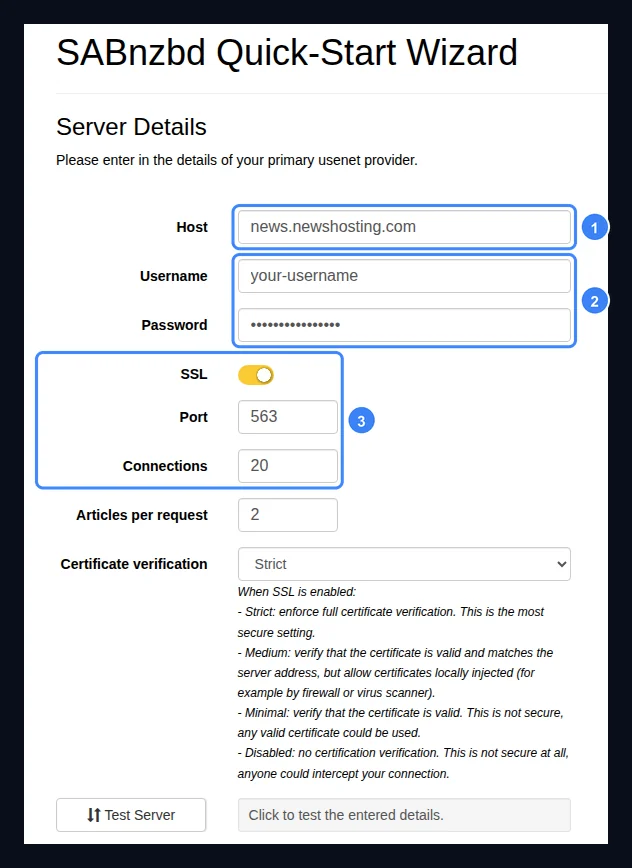
http://SERVER-IP:8080. The Quick-Start wizard opens. - Pick your language. On the Server Details page, enter host
news.newshosting.comand your Newshosting username and password. Turn SSL on, check that Port says563, and set Connections to20. - Click Test Server. Next stays blocked until the test passes, so a wrong password shows up right here. Then click Next and finish the wizard.
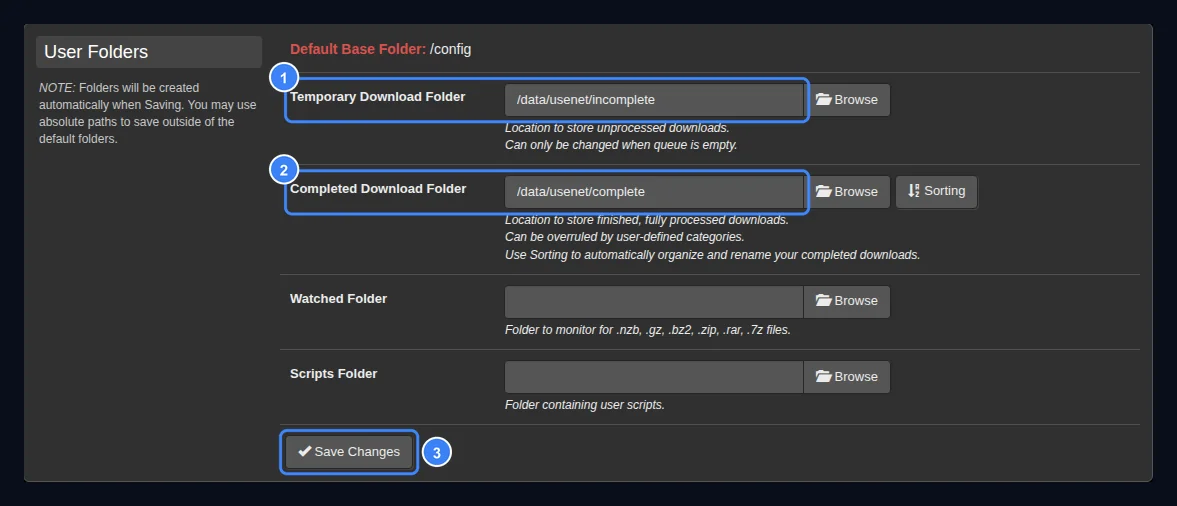
- Open the gear icon (Config) → Folders. Set Temporary Download Folder to
/data/usenet/incompleteand Completed Download Folder to/data/usenet/complete. Click Save Changes. - Config → Categories. Set the Folder/Path of
moviestomoviesand click that row’s Save. Then do the same fortv. (Saving reloads the page, so finish one row at a time.) Downloads in categorytvnow land in/data/usenet/complete/tv, andmoviesin/data/usenet/complete/movies. - Config → General → Security. Copy the API Key into a note. Sonarr and Radarr need it in step 6.
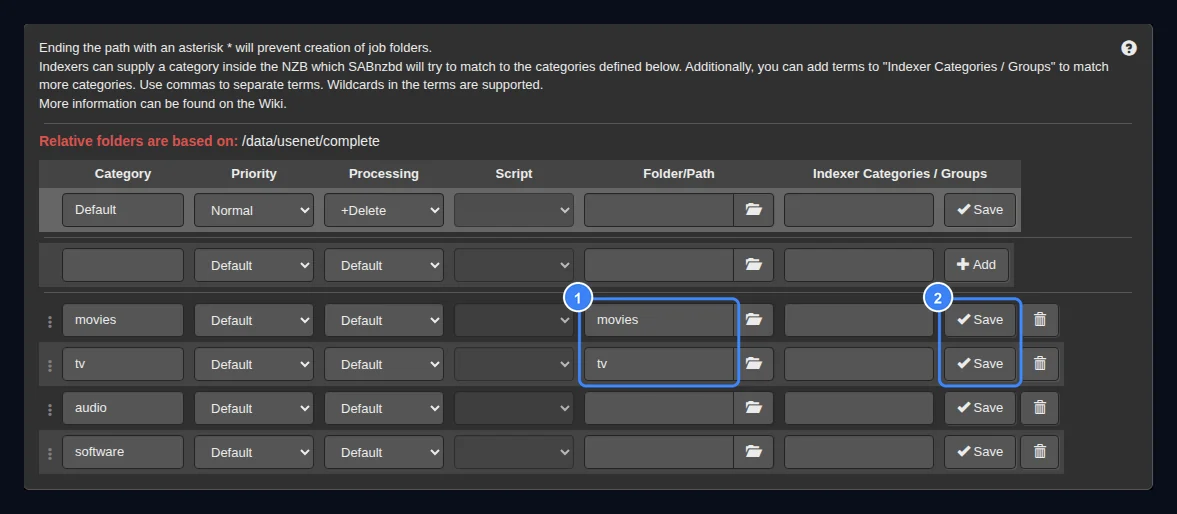
Check it works: SABnzbd’s main page shows no red warning at the top. Config → Servers lists news.newshosting.com with a green icon, and Test Server there still succeeds.
Alternative: NZBGet instead of SABnzbd. In the compose file, replace the whole
sabnzbdblock with this one (same indentation), then rundocker compose up -d --remove-orphans(that also removes the old SABnzbd container):nzbget: image: lscr.io/linuxserver/nzbget:latest container_name: nzbget environment: - PUID=${PUID} - PGID=${PGID} - TZ=${TZ} - NZBGET_USER=pick-a-username - NZBGET_PASS=pick-a-password volumes: - ./config/nzbget:/config - /data/usenet:/data/usenet ports: - 6789:6789 restart: unless-stoppedIn NZBGet (
http://SERVER-IP:6789, log in with the username and password above), open Settings:
- PATHS: set
DestDirto/data/usenet/completeandInterDirto/data/usenet/incomplete. The defaults point at/downloads, which Sonarr can’t see.- NEWS-SERVERS → Server1: Active
yes, Hostnews.newshosting.com, Port563, Encryptionyes, your username and password, Connections20. Click Test connection.- CATEGORIES: rename Category1 to
moviesand Category2 totv. Leave their DestDir empty.- Click Save all changes, then reopen CATEGORIES and check that nothing got duplicated.
Later, in step 6: add NZBGet instead of SABnzbd, with host
nzbget, port6789and the username and password above. Radarr’s default NZBGet category isMovieswith a capital M. Change it tomovies.
5. Add your indexer
Why: you enter the indexer once here, and Prowlarr keeps Sonarr and Radarr in sync.
- Open
http://SERVER-IP:9696. On first launch, an Authentication Required box asks you to set a login. Set Authentication Method to Forms (Login Page), choose a username, type a password twice and click Save. Leave Authentication Required on Enabled. (“Disabled for Local Addresses” also needs the Allowed Hosts field filled in, or Save silently fails.) - Go to Indexers → + (Add Indexer). Type your indexer’s name. If it isn’t listed, pick Generic Newznab and enter the URL from your indexer’s API page.
- Paste the API key from your indexer’s profile page.
- Click Test, then Save.
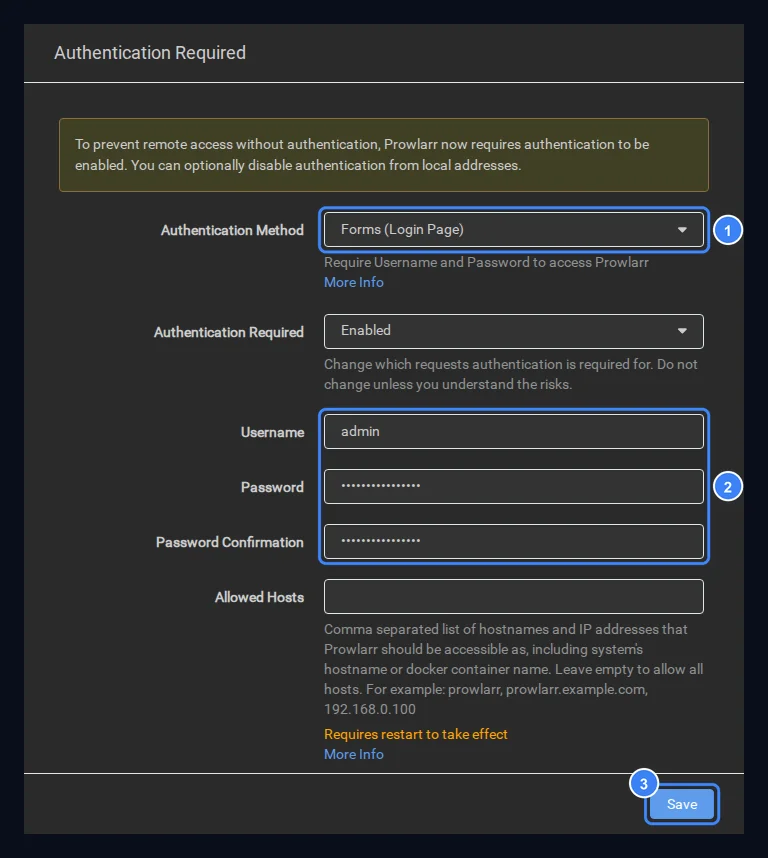
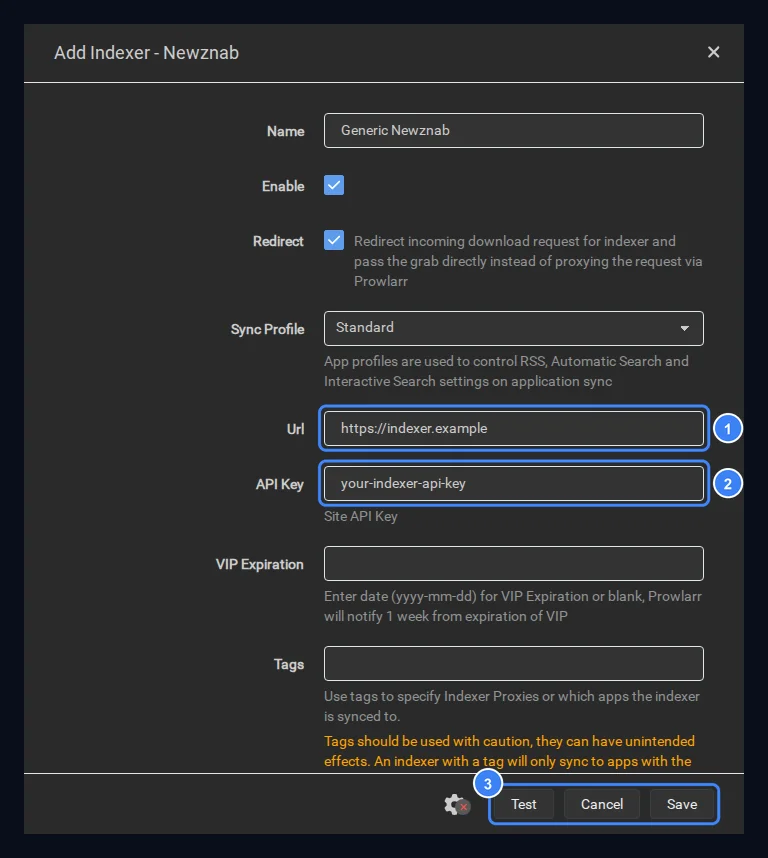
Check it works: the indexer shows in the list with no warning icon. On Prowlarr’s Search page, search for ubuntu and you should get results.
6. Set up Sonarr and Radarr
Why: these watch for what you add, hand the jobs to SABnzbd, then file the results.
Do this in Sonarr first, then repeat in Radarr using the values in parentheses.
- Open
http://SERVER-IP:8989(Radarr:7878) and set a login the same way as Prowlarr. - Settings → Media Management → Add Root Folder: type
/data/media/tv(Radarr:/data/media/movies) in the file browser and click Ok. On the same page, turn on Rename Episodes (Radarr: Rename Movies) and save. (Renaming is optional but keeps your library tidy.) - Settings → Download Clients → + → SABnzbd. Host
sabnzbd, port8080, the API key from step 4, categorytv(Radarr:movies). Click the ✓ button at the bottom to test it, then Save. - Completed Download Handling is on by default and is what imports finished files. You only see it on the Download Clients page after clicking Show Advanced. Leave it on.
- Settings → General → Security. Copy the API key. Prowlarr needs it next.
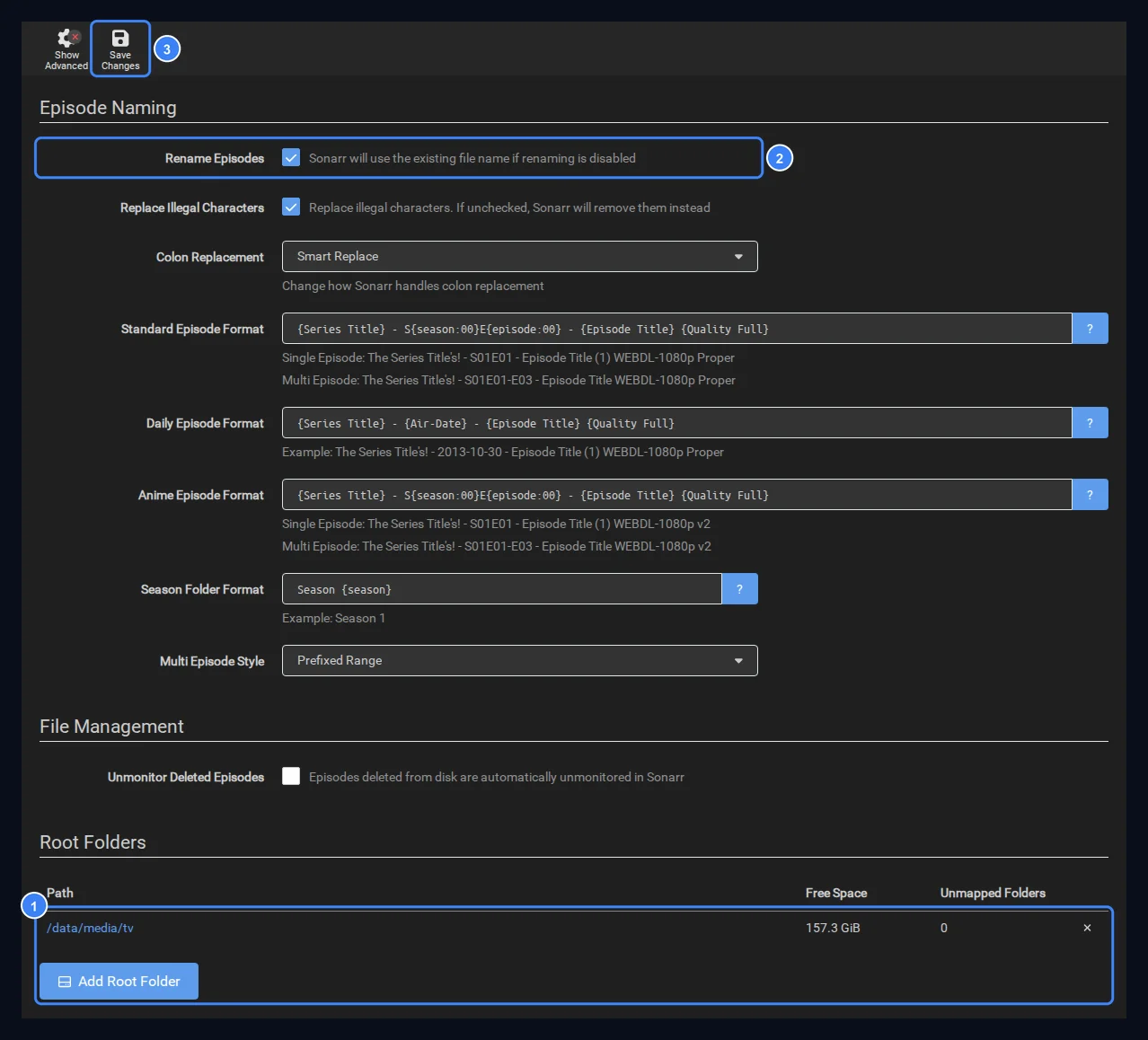
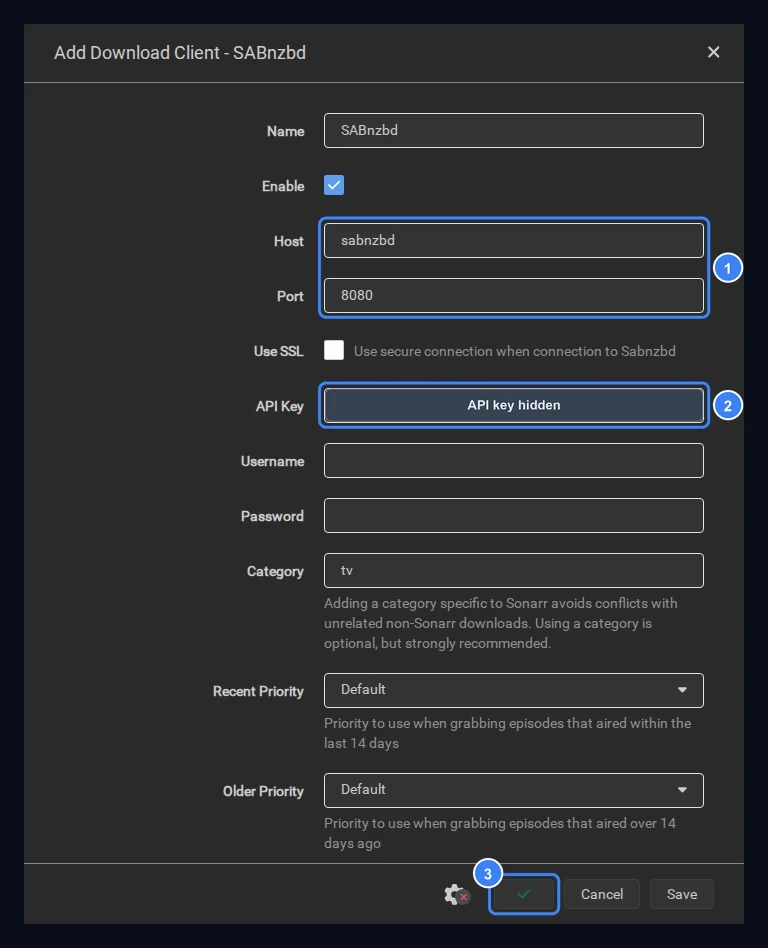
If the SABnzbd test says “Hostname verification failed”, go to SABnzbd’s Config → Special → host_whitelist, type , sabnzbd at the end, and click Save Changes (restart SABnzbd if it asks). Then test again. Typing your server’s IP address as the Host in Sonarr also works.
Check it works: the download client test shows a green check. System → Status may say “No indexers available with Automatic Search enabled”. That is expected and goes away after step 7. Any warning about root folders is a real problem: recheck step 2.
7. Link Prowlarr
Why: this pushes your indexer into both apps so you never enter it twice.
In Prowlarr, go to Settings → Apps → + → Sonarr. Change both server fields. They start as localhost, which doesn’t work between containers.
| Field | Sonarr | Radarr |
|---|---|---|
| Sync Level | Full Sync |
Full Sync |
| Prowlarr Server | http://prowlarr:9696 |
http://prowlarr:9696 |
| Sonarr Server / Radarr Server | http://sonarr:8989 |
http://radarr:7878 |
| API Key | From Sonarr | From Radarr |
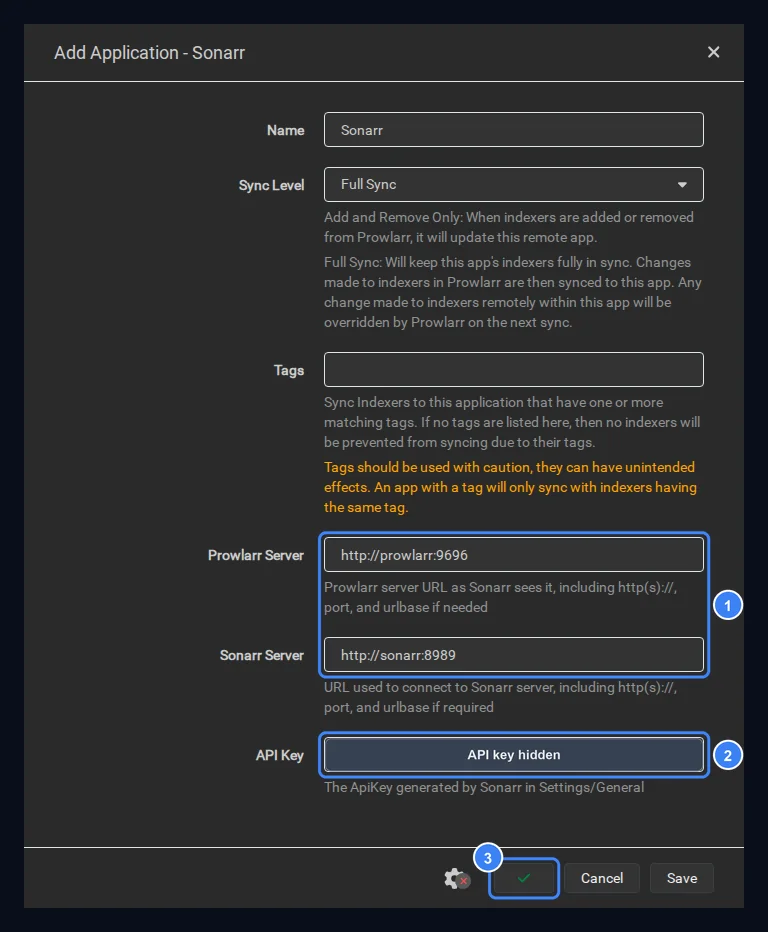
Click the ✓ button to test, then Save. Click + again, choose Radarr, and use the Radarr column.
Check it works: in Sonarr, Settings → Indexers now lists your indexer with “(Prowlarr)” after its name. The “No indexers available” warning is gone.
8. Point Plex at the library
Why: Plex only reads /data/media, so it never sees half-finished downloads.
- Open
http://SERVER-IP:32400/weband sign in. If Plex says no server was found: get a code from plex.tv/claim and paste it afterPLEX_CLAIM=in the compose file. Then rundocker compose up -dwithin 4 minutes (the code expires). - Add Library → TV Shows → folder
/data/media/tv. Add another for Movies →/data/media/movies. Those are the same folders from step 2, as Plex sees them.
Check it works (end to end):
- In Radarr, click Movies → Add New and search for
Big Buck Bunny. It is a Creative Commons film from the Blender Foundation. - Pick root folder
/data/media/moviesand any quality profile (Anyis fine for a test). Tick Start search for missing movie, then click Add Movie. - Within a minute the job appears in SABnzbd’s queue.
- When it finishes, Radarr’s Activity → History shows it as Imported. Plex shows it after the next library scan.
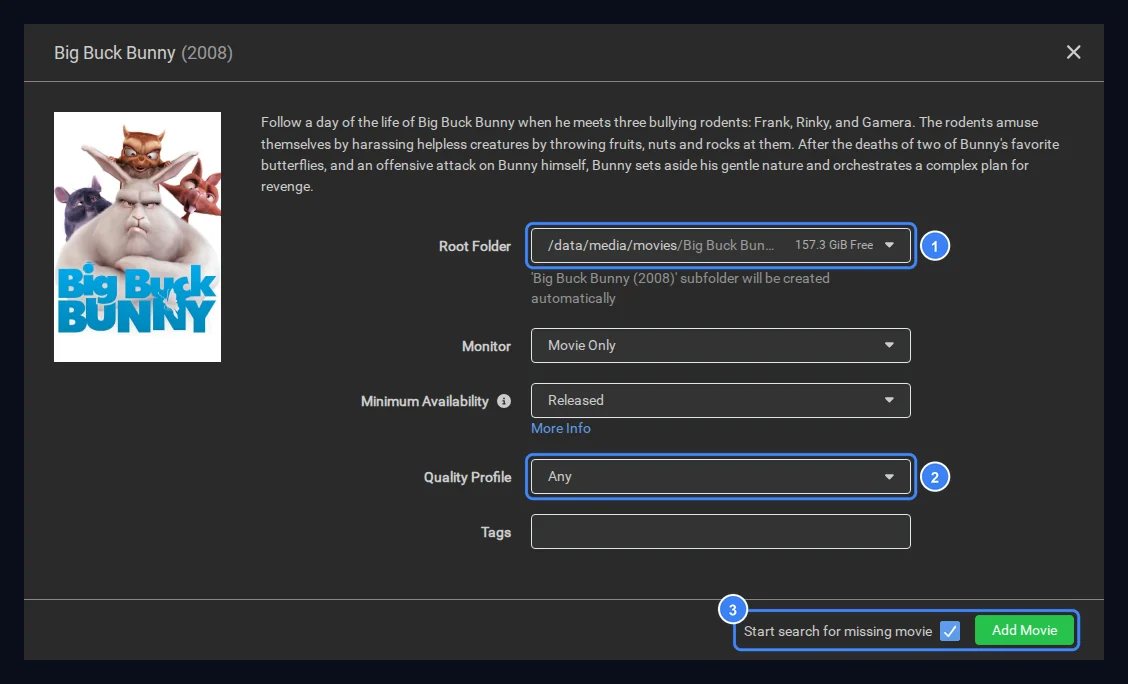
If your indexer has no release of it, try another open-licensed title. That is a search result, not a setup problem.
Prefer Jellyfin? Replace the whole
plexblock with this (nonetwork_mode,VERSIONorPLEX_CLAIM), rundocker compose up -d --remove-orphans, and openhttp://SERVER-IP:8096. Its setup wizard asks for the same two library folders:jellyfin: image: lscr.io/linuxserver/jellyfin:latest container_name: jellyfin environment: - PUID=${PUID} - PGID=${PGID} - TZ=${TZ} volumes: - ./config/jellyfin:/config - /data/media:/data/media ports: - 8096:8096 restart: unless-stopped
Common mistakes
- Category names must match exactly. On Linux,
Moviesandmoviesare two different folders. Use lowercasetvandmovieseverywhere: SABnzbd, Sonarr and Radarr. - Don’t add Remote Path Mappings. You only need them when the downloader runs on a different machine (ours does, on a seedbox). With this
/datalayout, adding them breaks imports. - When something stops, check two pages first: Activity → Queue and Wanted → Missing in Sonarr or Radarr. The answer is usually written right there.
Troubleshooting
| Problem | Likely cause | Fix |
|---|---|---|
| “Authentication failed” from the server | Wrong username or password, or the account isn’t active yet | Log in to the Newshosting website with the same details. Retype them in the downloader, with no trailing spaces. |
| SSL or certificate errors | SSL on a non-SSL port, or antivirus intercepting traffic | Use port 563 with SSL on, or 443 with SSL if 563 is blocked. |
| “Permission denied” in logs | PUID/PGID in .env don’t match the owner of /data |
Check id -u and id -g against ~/mediastack/.env, run sudo chown -R $USER:$USER /data, then docker compose up -d. |
| Downloads stuck in incomplete | Disk full, or a failed repair/unpack | Check df -h /data. In SABnzbd’s History, open the failed job for the reason. |
| “Hostname verification failed” | sabnzbd not in SABnzbd’s host_whitelist |
Config → Special → host_whitelist, add , sabnzbd, Save Changes. Or use the server’s IP as the Host. |
| Download finished but Sonarr never imports it | Path or category mismatch | SABnzbd must mount /data/usenet at the same path Sonarr sees. The category in Sonarr must equal the downloader’s. |
| Slow speeds | Too few or too many connections, or a distant server | Try 20, then 30 connections. Europe: try news-eu.newshosting.com. Test with a wired connection. |
For any of these, docker compose logs -f sonarr (or the app name) usually shows the real error in the last few lines. Paste the last 30 lines into Claude Code and ask what failed; it is good at reading these logs. Delete any API keys or passwords from the paste first. Our Claude Code complete guide shows how.
Keeping it sane
- Adding more: Sonarr → Series → Add New; Radarr → Movies → Add New. Everything else is automatic.
- Update monthly:
cd ~/mediastack && docker compose pull && docker compose up -d. - Back up one folder:
~/mediastackholds the compose file, the.envfile and every app’s config. - Change one thing at a time, and test after each change.
Advanced: if /data is a NAS mount, make Docker wait for it, or the apps can start against an empty folder. Run sudo systemctl edit docker, add the lines below, save, then run sudo systemctl daemon-reload. Keep _netdev on the /etc/fstab line.
[Unit]
RequiresMountsFor=/data
FAQ
Is there a free trial? No. At the time of writing (October 2026) Newshosting doesn’t offer one. Every plan has a 30-day money-back guarantee instead (see their terms).
Which plan should I get? For this setup, Unlimited. It allows 100 connections and has no data cap. At the time of writing (October 2026) it was $12.95 a month on the 1-year term (billed $155.40 up front) or $14.95 month to month, and it auto-renews at the then-current rate. Lite’s data cap and 30 connections are tight for automation. We have used Unlimited since 2022. You can see the current plans on the partner page (affiliate link).
Do I need a VPN? Not for Usenet itself. With SSL on port 563, the connection between your downloader and Newshosting is already encrypted. Newshosting bundles a VPN on some plans for general browsing (as of October 2026); check the plan page for which ones.
How far back do posts go? As of October 2026, Newshosting advertises 6,650+ days of retention (that works out to over 18 years), though their terms don’t guarantee it.
Our recommendation
Follow the steps in order and get one test item from Radarr into Plex before you change anything else. After that, add the shows and movies you have the rights to and let it run. If you don’t have an account yet, Newshosting’s partner signup page (affiliate link) is the one we recommend, and you can compare plans on the main site. If you get stuck, ask on our Discord (pick the Self-Hoster role when you join).
