What Is Claude Code Remote Control?
Anthropic just dropped one of the most requested features in the AI coding space: the ability to control your Claude Code terminal session from your phone, tablet, or any browser. It’s called Remote Control, and it’s available right now for Pro and Max subscribers.
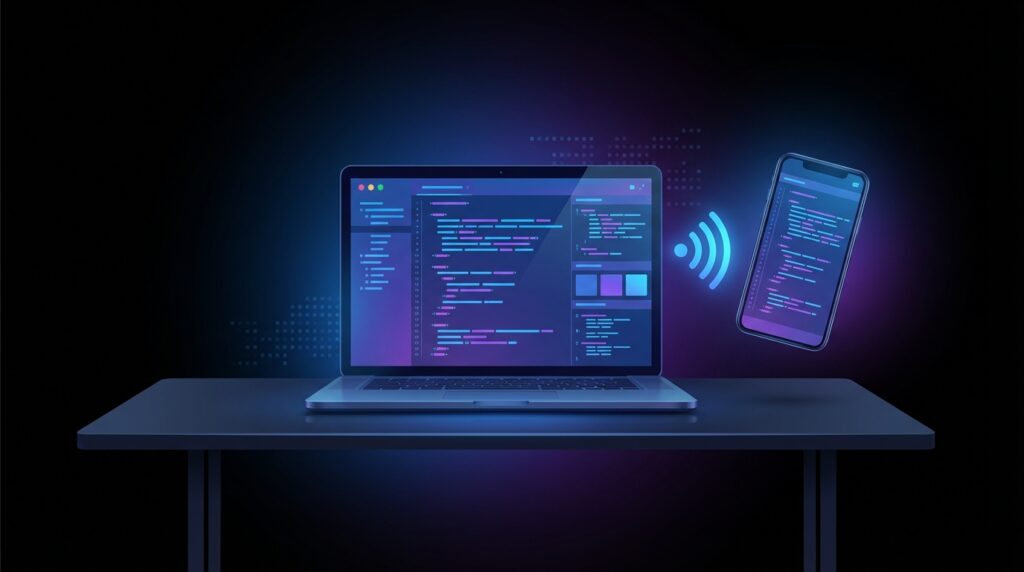
Here’s the short version: you start Claude Code on your laptop, walk away, and keep working from your phone. Your code stays local. Nothing moves to the cloud. The mobile app (or web browser) is just a window into your actual terminal session running on your machine.
This is different from “Claude Code on the web” (which runs on Anthropic’s cloud). Remote Control keeps everything on your hardware — your filesystem, your MCP servers, your project configs. You’re just viewing and controlling it remotely.
Why This Matters
If you’ve ever kicked off a long-running task in Claude Code — a large refactor, a test suite, a migration — you know the frustration of being chained to your desk. Remote Control solves that completely.
Real scenarios where this changes your workflow:
- Start a refactor at your desk, monitor from the couch. Walk away from your laptop. Claude keeps working. You approve tool calls from your phone.
- Deploy from anywhere. Kick off a deployment pipeline, close your laptop, and manage the entire process from your phone while commuting.
- Pair programming on the go. Share a session URL with a colleague. They can see exactly what Claude is doing in real time.
- Night owl debugging. Start a debug session on your desktop, continue it from your tablet in bed. We’ve all been there.
Requirements
Before you start, make sure you have:
- Claude Pro ($20/month) or Max ($100-200/month) subscription — API keys don’t work with Remote Control
- Claude Code CLI updated to version 2.1.52+ — run
claude updateif you’re behind (see our complete Claude Code setup guide if you’re starting from scratch) - Signed in via
/login— you need to be authenticated through claude.ai - Workspace trust accepted — run
claudein your project directory at least once - Claude mobile app (optional but recommended) — available on iOS and Android
How to Set It Up (Step by Step)
Option 1: Start a Fresh Remote Session
Navigate to your project directory and run:
claude remote-controlThat’s it. Your terminal will display a session URL and you can press spacebar to show a QR code. Scan the QR code with your phone to connect instantly through the Claude app.
Optional flags:
--verbose— show detailed connection and session logs--sandbox/--no-sandbox— enable or disable filesystem and network sandboxing
Option 2: Convert an Existing Session
Already in the middle of something? You don’t need to start over. Just type:
/remote-controlOr the shorthand:
/rcThis converts your current session into a Remote Control session. Your full conversation history carries over. You’ll get the same session URL and QR code.
Pro tip: Use /rename before /rc to give the session a descriptive name. Makes it way easier to find in the Claude app’s session list.
Connecting from Your Phone or Another Device
You have three ways to connect once the session is active:
- Scan the QR code — shown in your terminal (press spacebar to toggle). Opens directly in the Claude app.
- Open the session URL — copy-paste into any browser. Takes you to claude.ai/code.
- Open the Claude app — look for the session by name. Remote Control sessions show a computer icon with a green dot when online.
Don’t have the Claude app yet? Run /mobile inside Claude Code to get a download QR code.
How It Actually Works Under the Hood
Remote Control is a synchronization layer — not cloud computing. Here’s what’s happening:
- Your local Claude Code session makes outbound HTTPS requests only (no inbound ports opened on your machine)
- It registers with the Anthropic API and polls for work
- When you send a message from your phone, it routes through the Anthropic API to your local session
- Your local session executes the command and sends the result back
- All traffic is encrypted via TLS with short-lived credentials
Your files and MCP servers never leave your machine. Only chat messages and tool results flow through the encrypted bridge. This is critical for anyone working with sensitive codebases or proprietary tools.
Enable Remote Control for Every Session
If you want Remote Control available by default (so you don’t have to type claude remote-control every time), you can enable it globally:
- Open Claude Code and run
/config - Set “Enable Remote Control for all sessions” to
true
Now every Claude Code session will automatically be accessible remotely. Set it back to false to disable.
Limitations to Know About
Remote Control is still in research preview, so there are a few constraints:
- One remote session per Claude Code instance. If you run multiple terminals, each gets its own session.
- Terminal must stay open. If you close the terminal or kill the
claudeprocess, the session ends. This is local execution, not cloud. - Network timeout at ~10 minutes. If your machine loses internet for more than about 10 minutes, the session times out. Just run
claude remote-controlagain to reconnect. - Not available on Team or Enterprise plans yet. Currently Pro and Max only.
Remote Control vs Claude Code on the Web
Anthropic now offers two ways to use Claude Code outside your terminal:
| Feature | Remote Control | Claude Code on the Web |
|---|---|---|
| Where it runs | Your machine | Anthropic’s cloud |
| Local files | Full access | No access (clone from Git) |
| MCP servers | Available | Not available |
| Setup required | Terminal must be open | None — works from browser |
| Best for | Continuing local work on the go | Starting fresh tasks without local setup |
| Parallel sessions | One per instance | Multiple supported |
Use Remote Control when you’re in the middle of local work and want to keep going from another device. Use Claude Code on the web when you want to spin up a task without any local setup or work on a repo you don’t have cloned.
Practical Tips from Our Testing
We’ve been testing Remote Control since it dropped. Combined with solid AI coding best practices, here’s what we’ve learned:
- Name your sessions. Run
/rename my-refactorbefore/rc. When you have multiple projects going, unnamed sessions are impossible to find in the app. - Use it with
--verbosethe first time. The verbose flag shows you exactly what’s being synced and when. Helps build trust in how it works. - Keep your laptop plugged in. If your machine sleeps, the session pauses (but reconnects when it wakes). For long tasks, disable sleep or use a utility like
caffeinateon macOS:caffeinate -d claude remote-control - Combine with hooks. If you’re using Claude Code hooks, they still fire normally in Remote Control sessions. Great for automated testing after every file change.
The Bigger Picture
Claude Code has been on a tear — hitting a $2.5 billion annualized run rate with 29 million daily installs on VS Code alone. It’s already the top-ranked AI coding tool for many developers, and features like this widen the gap with competitors like Cursor and OpenClaw. Remote Control is Anthropic’s answer to one of the biggest friction points in AI-assisted development: you shouldn’t have to sit at your desk to benefit from an AI agent working on your code.
With Remote Control, Claude Code is no longer just a terminal tool. It’s becoming a full development companion that follows you across every device you own. And because your code never leaves your machine, there’s no security trade-off for the convenience.
This is the kind of feature that makes you wonder why it didn’t exist sooner.
